Cool Intellij IDEA Shortcuts

I have used Netbeans, Eclipse, STS, and Intellij IDEA but Intellij has been my first choice since my first use. It is one of the best IDE for developing applications. Compared to other IDEs, it provides strong support for autocomplete feature. The debugging feature in it is a lot easier and the User Interface is awesome. I just love it.
Using shortcuts helps us to do more in less time. I have my favorite IntelliJ IDEA shortcuts mentioned below.
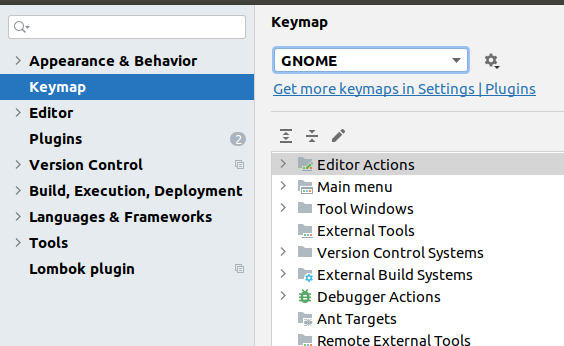
Note: I have GNOME as a keymap setting in my IDE.
Rename (Shift + F6)
This is the most frequently used shortcut for me. It helps to rename the variables or methods names. Let’s see an example.
public List<String> getPaymentList(){
    // logic
return Collections.emptyList();
}
Your senior developer didn’t like the name of your method or let’s say Uncle Bob would hate you for this method name which is why you would like to change it. It had been used in twenty different places and you have to replace the name manually. Can you feel the pain? Go to the method declaration part of your code or to the method calling part, place your cursor to the method name and hit Shift + F6, and rename your method. Voila, you can see the changes being reflected in all the files.
Multi Cursor (Alt + J)
This is personally my favorite shortcut. It is also a shortcut to flex with junior developers. It helps us to multi-select the matching content. Consider the scenario, where you have this SQL file.
INSERT INTO users(id, name, address, phone) VALUES (1, 'John', 'ktm', '122233');
INSERT INTO users(id, name, address, phone) VALUES (2, 'Tim', 'ktm', '122234');
INSERT INTO users(id, name, address, phone) VALUES (3, 'Tom', 'ktm', '122235');
INSERT INTO users(id, name, address, phone) VALUES (4, 'Lindy', 'ktm', '122236');
INSERT INTO users(id, name, address, phone) VALUES (5, 'Catherina', 'ktm', '122237');
INSERT INTO users(id, name, address, phone) VALUES (6, 'Bill', 'ktm', '122238');
// 1000 of lines
You have to add one more column in this SQL called user_type with static value USER, are you going to do it manually? Definitely, not. There might be other options for this use case as well, but I am going to demonstrate the power of Alt + J. In the first line, place your cursor before VALUES and select phone) and hit Alt+J multiple times and you can see the exact word phone) being selected. This is what it looks like:

Move your cursor before ) and type , along with your column name i.e user_type. There you go, we unleashed the power of Alt + J. Also, we can unselect from the last by hitting Alt + Shift + J.

Bookmark (Ctrl+Shift+AnyKey and Ctrl+AnyKey)
If you are working with multiple files, you might have to navigate between methods across different files. It will be a pain to go back and forth. Let’s say you are trying to fix a bug written by somebody else, you are already tired searching codes and you forgot the method name or class name you recently visited, it will be so infuriating. Adding a bookmark will help you to be more productive in such cases.
You can hit Ctrl+Shift+AnyKey to set a bookmark. For eg: Ctrl+Shift+1. Intellij IDEA will show a bookmark icon.
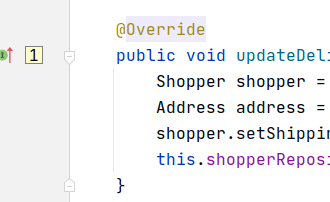
You can work with other files and if you feel like jumping into this code, you can hit Ctrl+AnyKey (Ctrl+1 in this case) and you will be returned to this method. It’s that easy. Similarly, you can remove the bookmark by hitting Ctrl+Shift+AnyKey.
Inline (Ctrl+Alt+N)
I prefer deleting codes to writing codes. I love to refactor the code. This shortcut is used to inline the variable or method call. It’s mostly used while refactoring the code.
Customer customer = getCusomer();
createPaymentIntent(customer);
In the snippet like above, if it makes sense to you to inline getCustomer() method, then you can place your cursor to the customer object and hit Ctrl+Alt+N. It will inline the code and the result, then, looks like:
createPaymentIntent(getCusomer());
Extract Variable/Method/Field/Constant/Parameter
This shortcut also makes refactoring easy.
Snippet-1:
getCustomer(); //returns Customer Object
Select getCustomer() method and hit Ctrl+Alt+V to get the variable returned by the object. The result will be:
Customer customer = getCustomer();
Snippet-2:
Customer customer = new Customer();
customer.setName("Customer");
customer.setAddress("Ktm");
customer.setMobile("9779852365321");
Let’s say, you want to refactor this piece of code into a method. You can select these blocks of codes and enter Ctlr+Alt+M in order to extract to a method. Intellij IDEA will show a popup where you can enter the name of the method along with the visibility (access modifiers).
Likewise, Ctrl+Alt+P is for extracting the method parameter. Ctrl+Alt+C is for extracting a constant variable and Ctrl+Alt+F is for extracting a field variable.
Live Templates
You can save time by using live templates for the code blocks you use repeatedly. Intellij Idea itself provides some live templates. Let's check it out.
- psf: Type psf and hit Tab,
public static finalsnippet will be generated. - psfs: Type psfs and hit Tab,
public static final Stringsnippet will be generated. - thr: Type thr and hit Tab,
throw newsnippet will be generated. - fori: Type fori and hit Tab, a for loop will be generated.
- iter: Type iter and hit Tab, a forEach loop will be generated.
You can also define your custom live templates.
Thanks a lot for reading my article. If you know other cool shortcuts, then feel free to add in the comments :)
Comments
Join the discussionThose are some great tips! I use Webstorm and occasionally IntelliJ at work. I love using Live Templates! It makes coding way faster. I like the idea of bookmarks so I’ll have to try that out.
Thanks for sharing!
Thank you for reading it :)